
The following steps will help in locating and signing into your OneDrive:
Walkthrough:
1. Start at the desktop of your device.
2. At the bottom of your screen you will see your toolbar. If you follow it to the right side of your screen you will see an up-carrot (^). Click on this.
3. A small window will appear above your toolbar. inside there will be a grey cloud with a line through it. This is the nonactive icon for OneDrive. Click on this.
4. A new window will app with a sign-in button able to be clicked. This is where you will input your work credentials. The application will verify your account.
5. The window will now modify asking what you would like backed up. the default selected as Desktop, Documents, and Pictures. You may leave these selected.
6. Syncing to your account will begin after the startup wizard is completed. You will then receive notifications to the right of your screen on sync status.
Note: The icons will range in meaning from item to item.
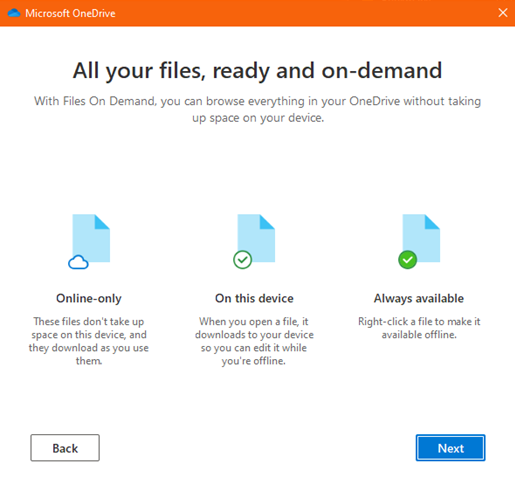
7. After the sync is complete, any newly saved item to your device from here will be backed up to your OneDrive.
8. To locate your quick access file for one drive, you can open your file explorer and click into the ONeDrive listed with the organization's name. You can also go to OneDrive.com on the web to look at what is backed up.
Tutorial:
Notes:
When asked if you want to stay signed in to all your apps, you will want to select ok as this will link all your desktop applications sign in's so you do not have to sign in individually to each.
For any item that does not sync you can skip or try to manually upload it to your OneDrive.
Comments
0 comments
Article is closed for comments.